Answers from your own notes
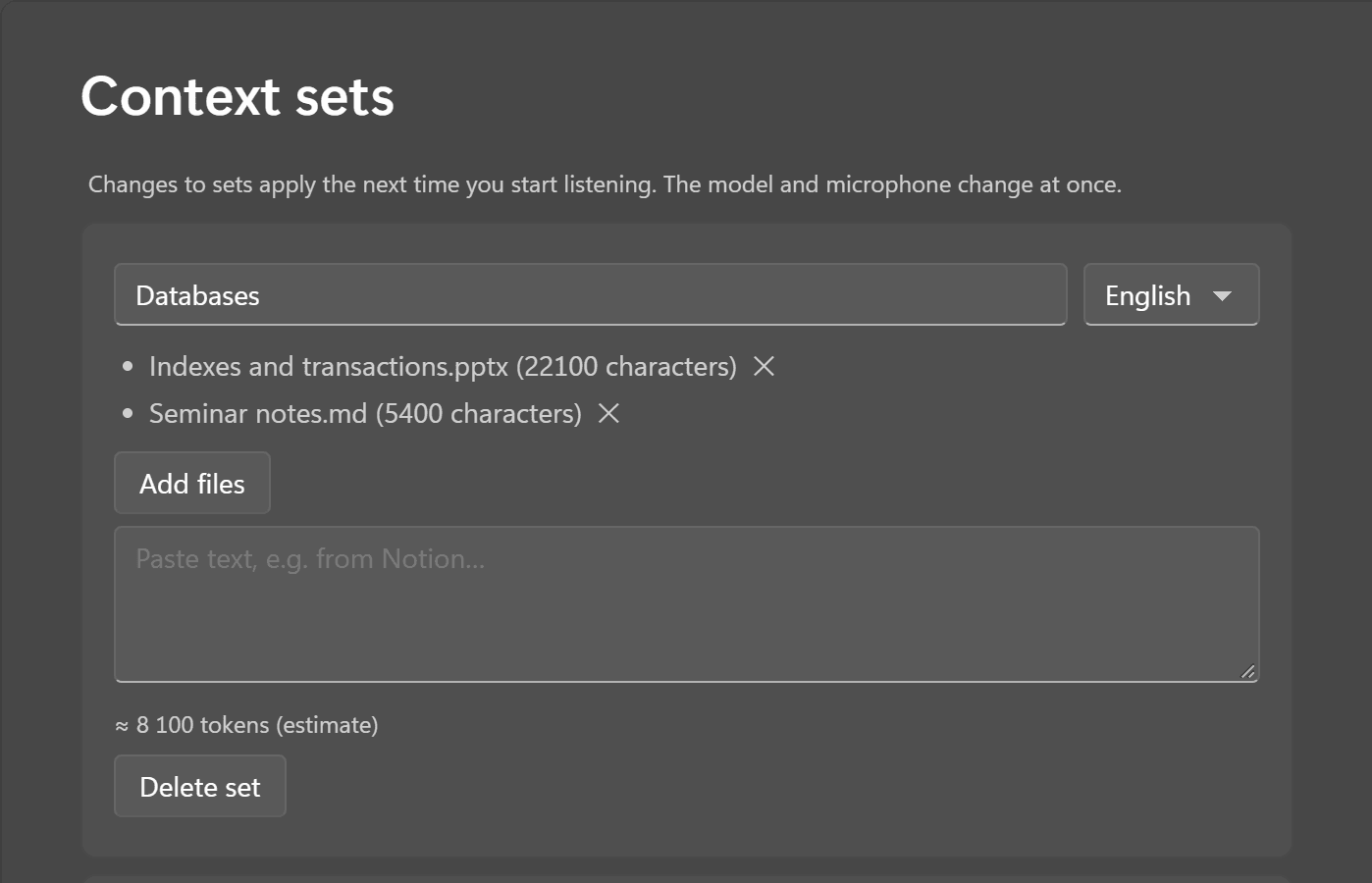
Add slides, PDFs or Notion exports as a context set, and the bar shows when an answer comes from your notes.
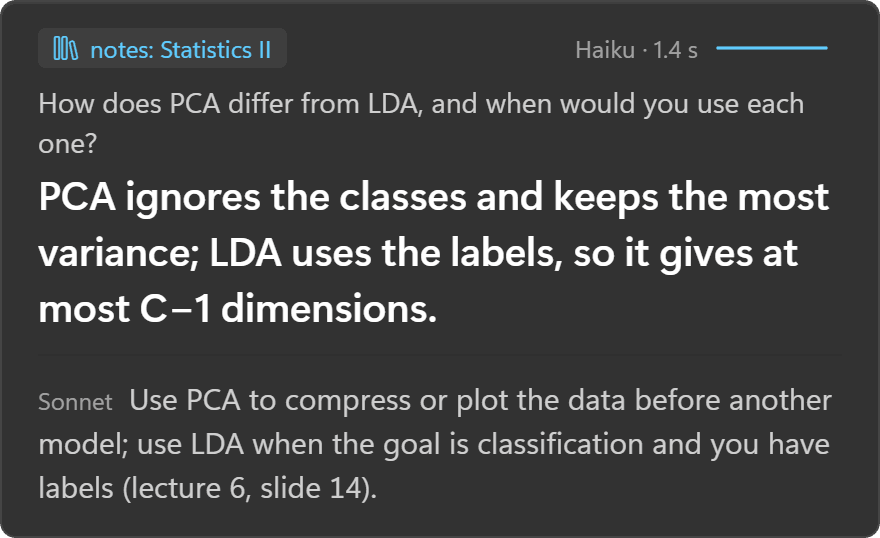
WhisperCue hears a question in your lecture or call and shows a short answer in 1–2 seconds, in a bar only you can see.
Listening to the lecture

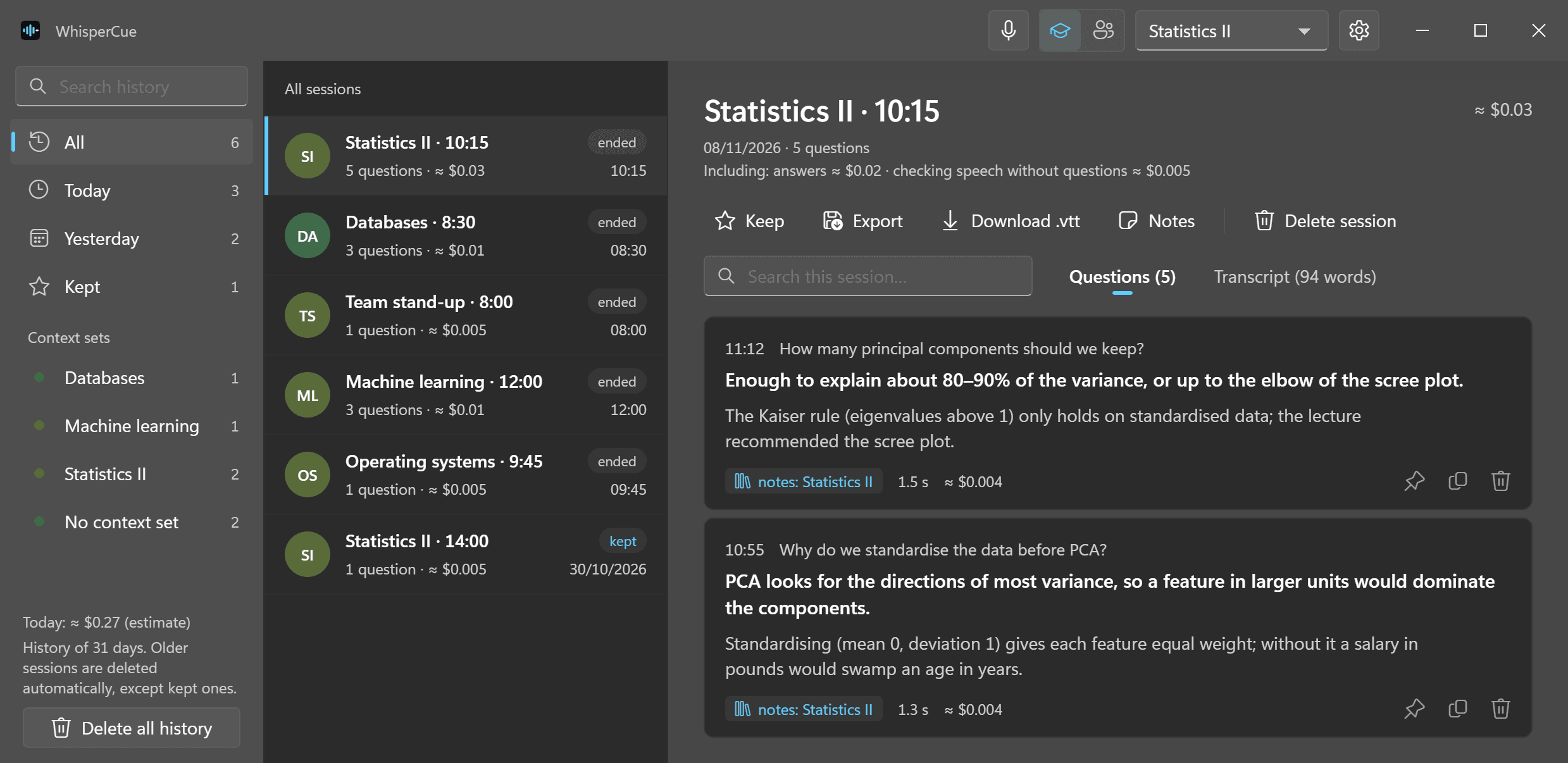
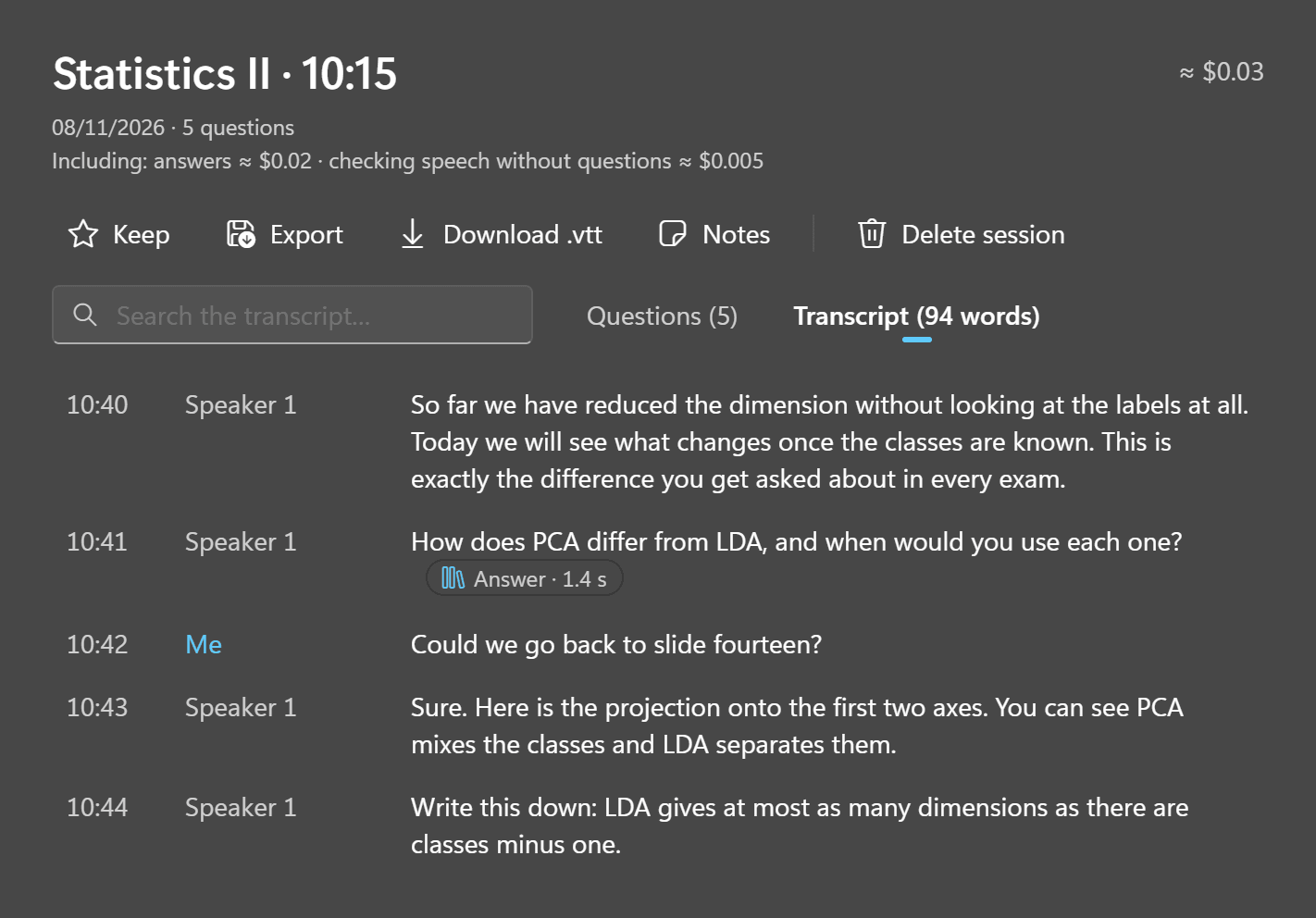
The panel lists your sessions by day. Open one to read each question with its short answer, the full one and its source, or download the transcript. See what stays on your PC
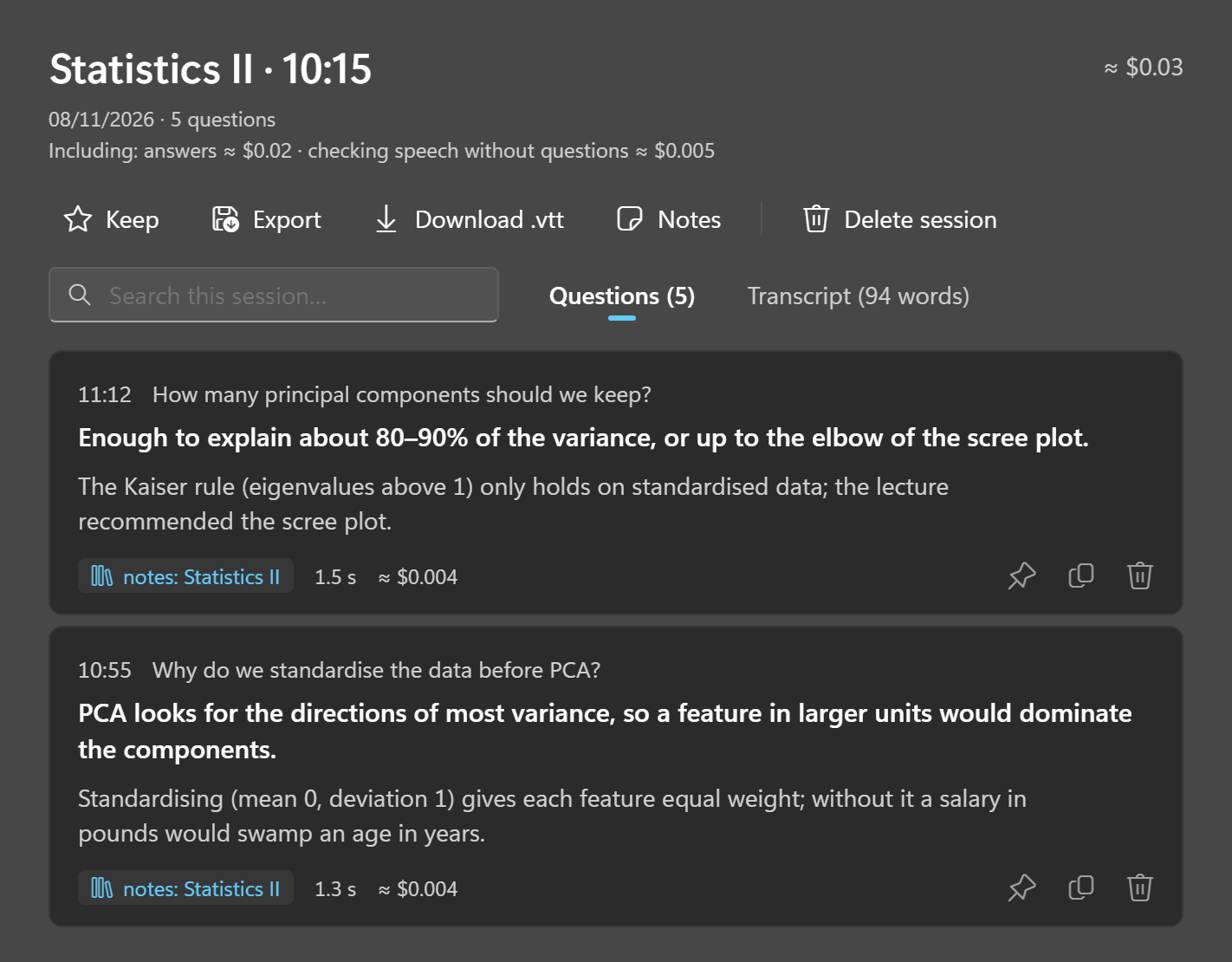
Add slides, PDFs or Notion exports as a context set, and the bar shows when an answer comes from your notes.
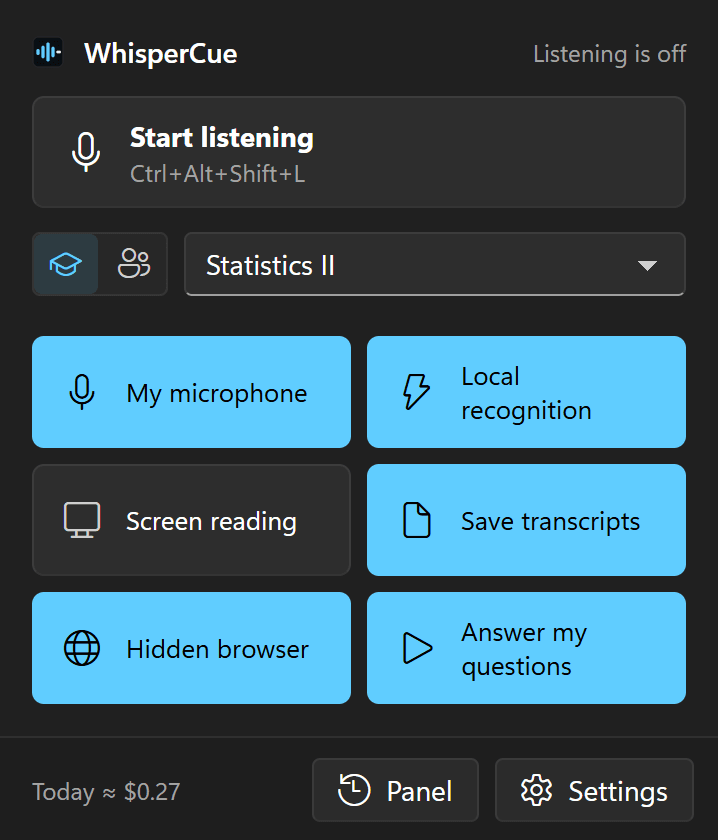
One click on the tray icon starts listening. The same panel switches the mode and the context set and turns six options on or off.
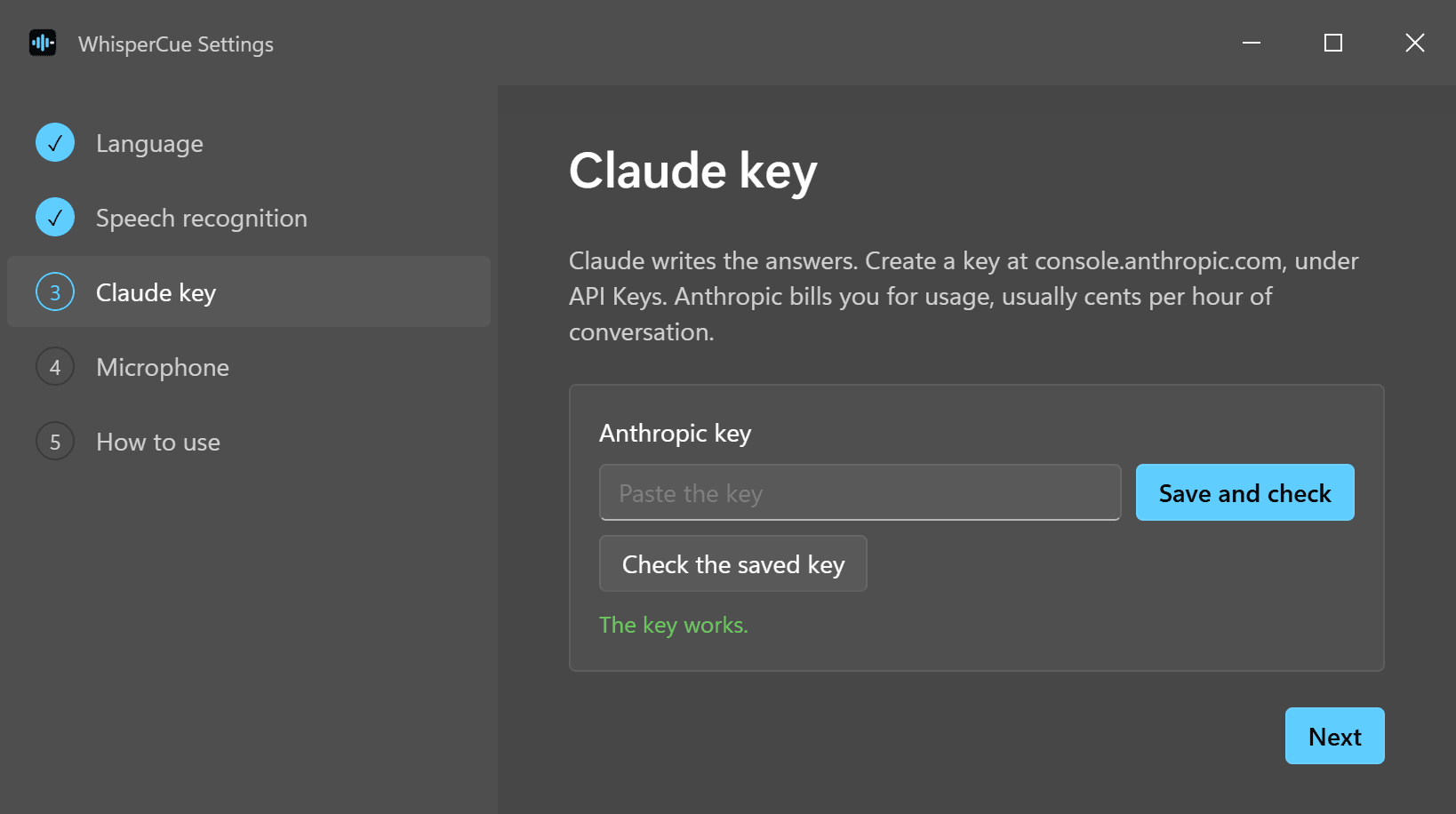
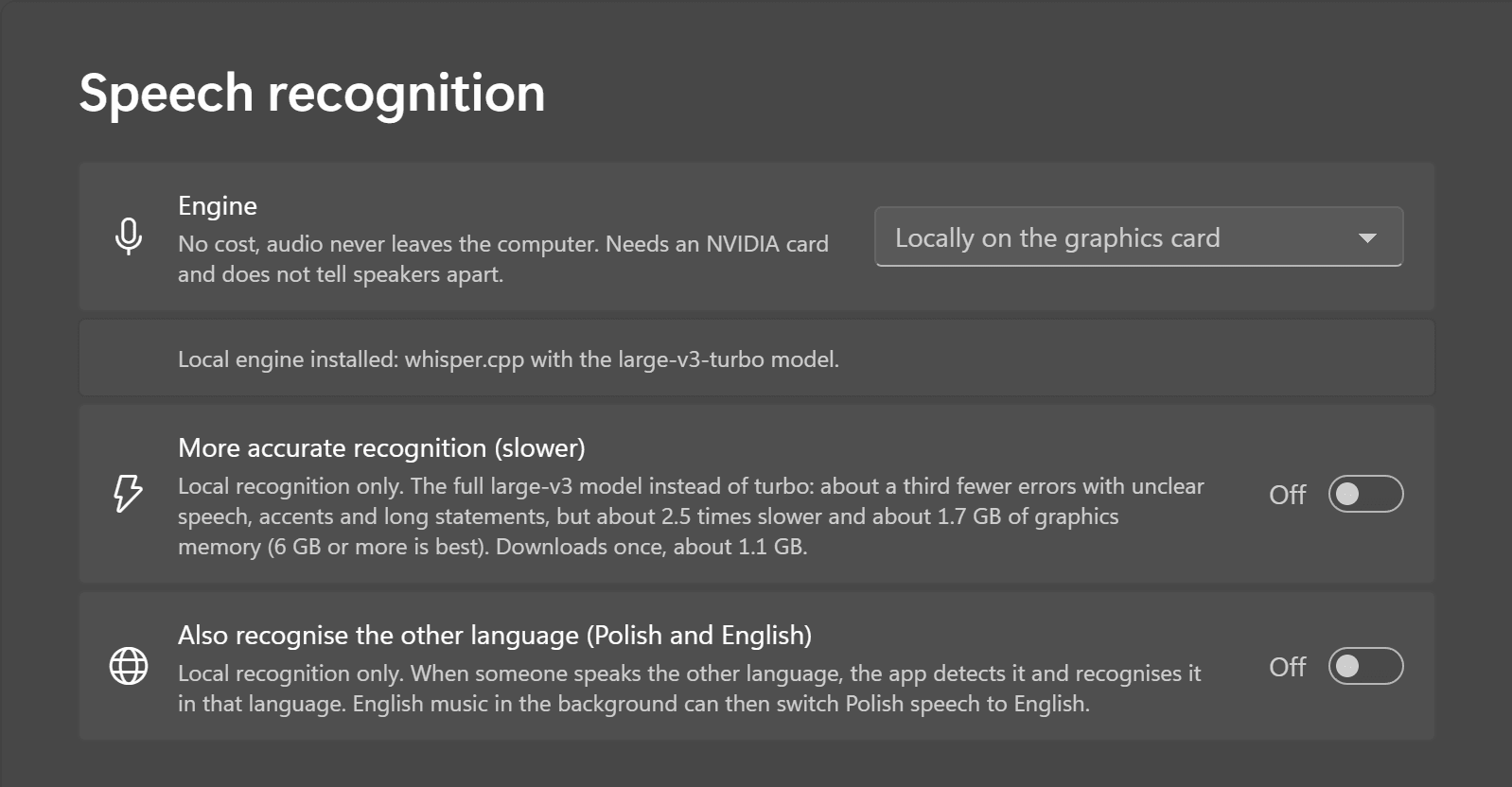
Choose where speech is recognised: Deepgram in the EU, or Whisper for free on your NVIDIA card, with the more accurate large-v3 model if you want it.
In meeting mode, one shortcut weighs the idea discussed in the last five minutes: verdict, pros, cons and effort.
Every WhisperCue window is excluded from screen capture, and the app never speaks.
It catches each real question in the transcript and skips small talk. CtrlShiftSpace answers whatever was just said; CtrlShiftB steps back.
Nobody but you sees it: it stays out of sharing and recordings, off the taskbar and AltTab, and you drive it with the keyboard alone.
Look something up while you share your screen. Your logins are remembered.
A screenshot goes to the AI with your question, and only you see the answer.
The screen or a window straight to the clipboard, with no sound or flash.
Your favourite sites on number keys, AI chats by default.
You can change every shortcut in settings.
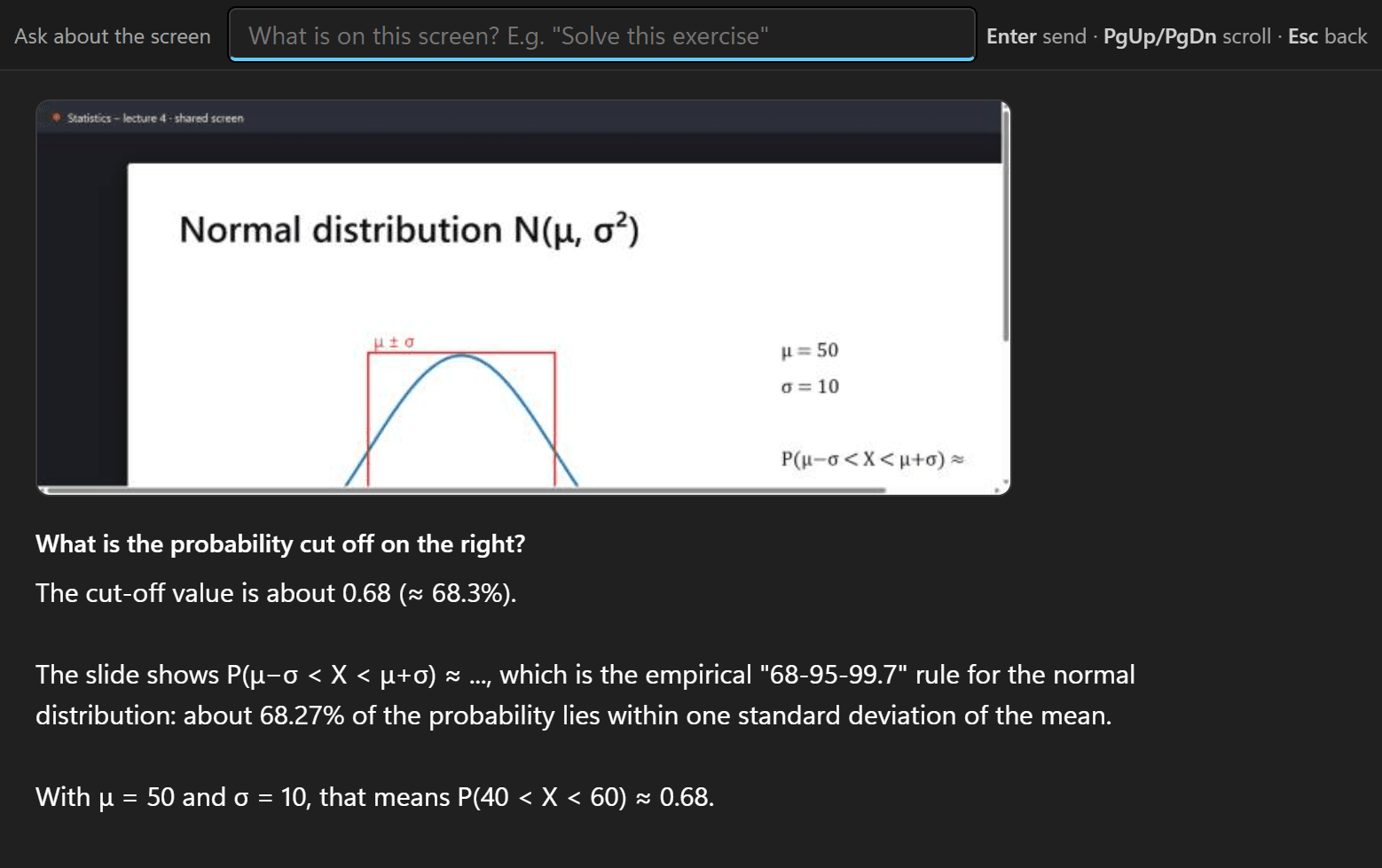
With CtrlShiftU every question goes with a screenshot of the slide, so “what does this chart show?” is answered from the screen.
The whole transcript becomes a summary, key points and review questions, or decisions and tasks, saved as Markdown.
When your microphone is transcribed, a question you ask out loud gets an answer too.
Whisper on an NVIDIA card for free, and no audio leaves the PC. The more accurate large-v3 model is one switch away.
CtrlShiftB steps back through earlier answers on the bar, and CtrlShiftP pins the one you need for longer.
CtrlShiftE weighs the last five minutes: verdict, pros and cons, the biggest risk and the effort.
Save a session as Markdown, and the transcript as .vtt captions with times and speakers.
Interface, speech recognition and answers in both languages. The app can detect the other language itself.
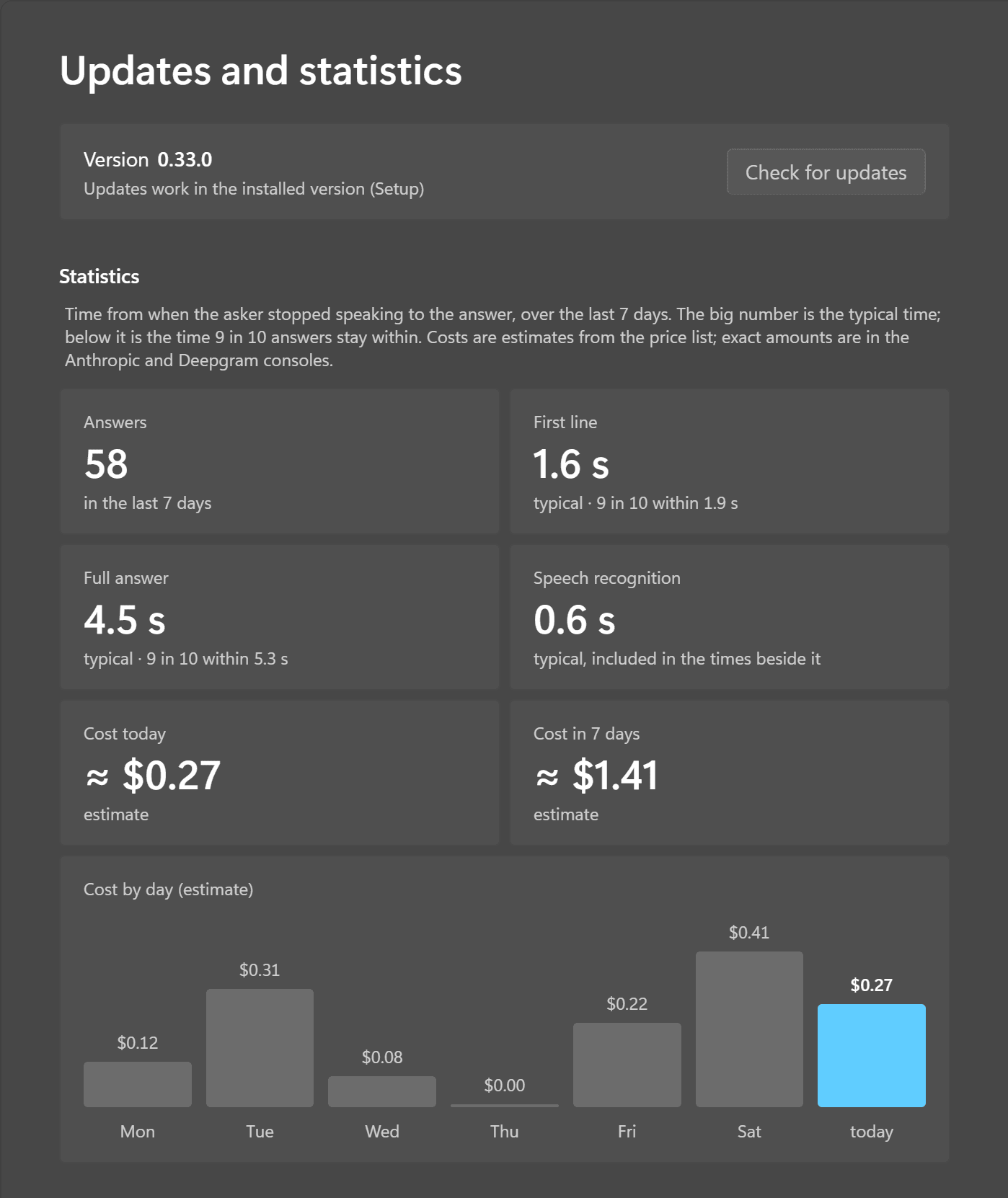
WhisperCue costs nothing. Answers run on your Anthropic key, and speech on Deepgram or for free on your NVIDIA card.
No. Every window is excluded from capture, so Teams and recordings show what is under it.
No audio is ever saved. Speech goes to Deepgram in the EU, or stays on your PC.
Windows 10 or 11, a Claude key, and a Deepgram key or an NVIDIA card.
Polish and English, for speech and answers alike.
No. Without one, speech recognition runs on Deepgram instead.
The app does not decide that; the rules of your course or meeting do.
Leave your email and we write once, when the installer is public. Setup then takes five steps and checks each key.